Platform →

Live Conversation Widget

A real-time support widget that lets you chat instantly with your website visitors, answer their questions, and boost conversions, all from one place.

Pricing:1 credit / thread

You Can Fully Customize:

Chat appearance and theme customization
Header branding and welcome message
Message bubble styling
Input field configuration
Widget dimensions and positioning
Agent/admin dashboard interface

Creating a Live Conversation Widget

To create a Live Conversation widget:

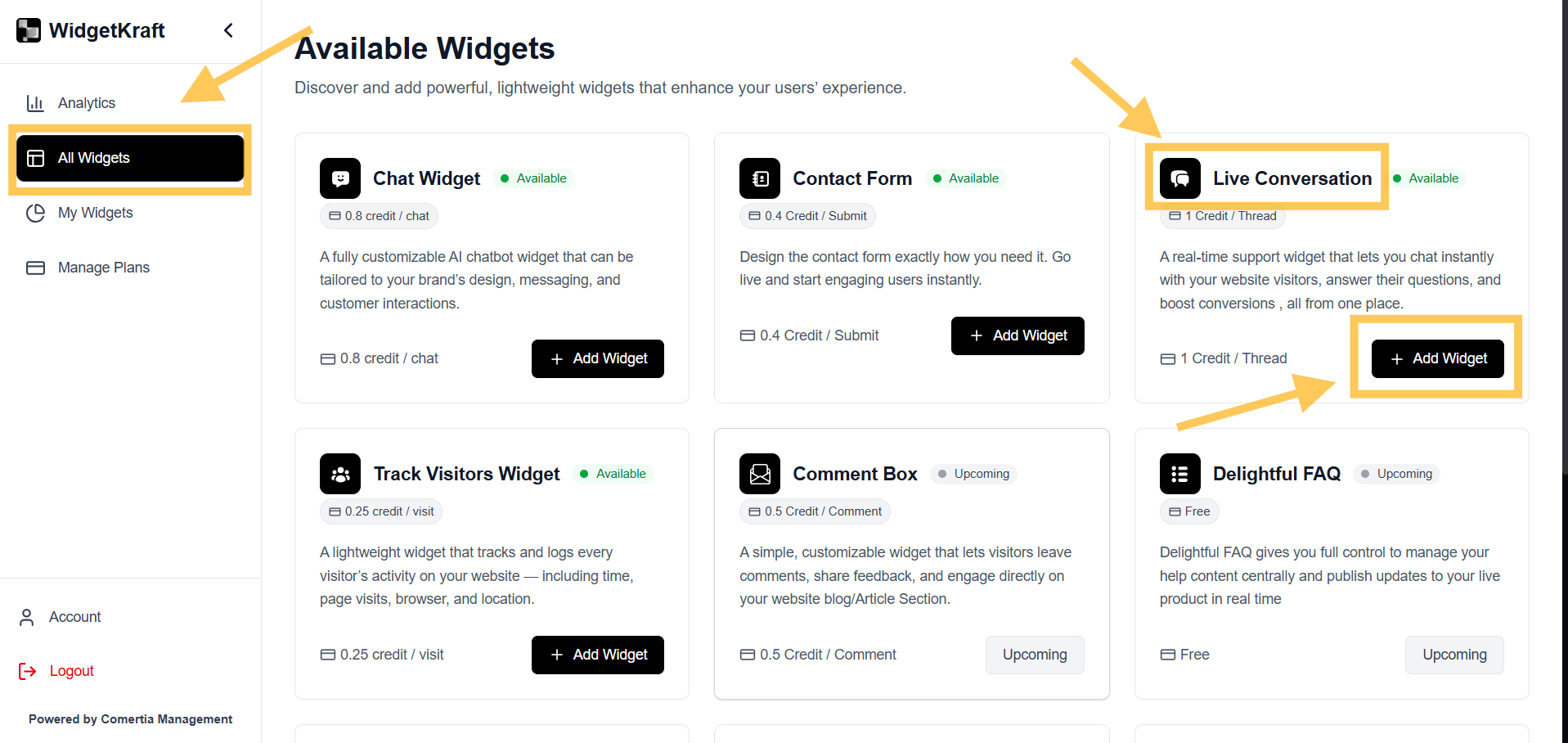
  1. 1Go to Available Widgets → Live Conversation Widget
  2. 2Click Add Widget
  3. 3Configure your widget in the editor
  4. 4Copy the embed code to your site
WidgetKraft: Creating a Live Conversation Widget - Dashboard Selection

Dashboard showing how to active Live Conversation widget

Understanding the Live Conversation Editor

The editor is divided into five main configuration tabs:

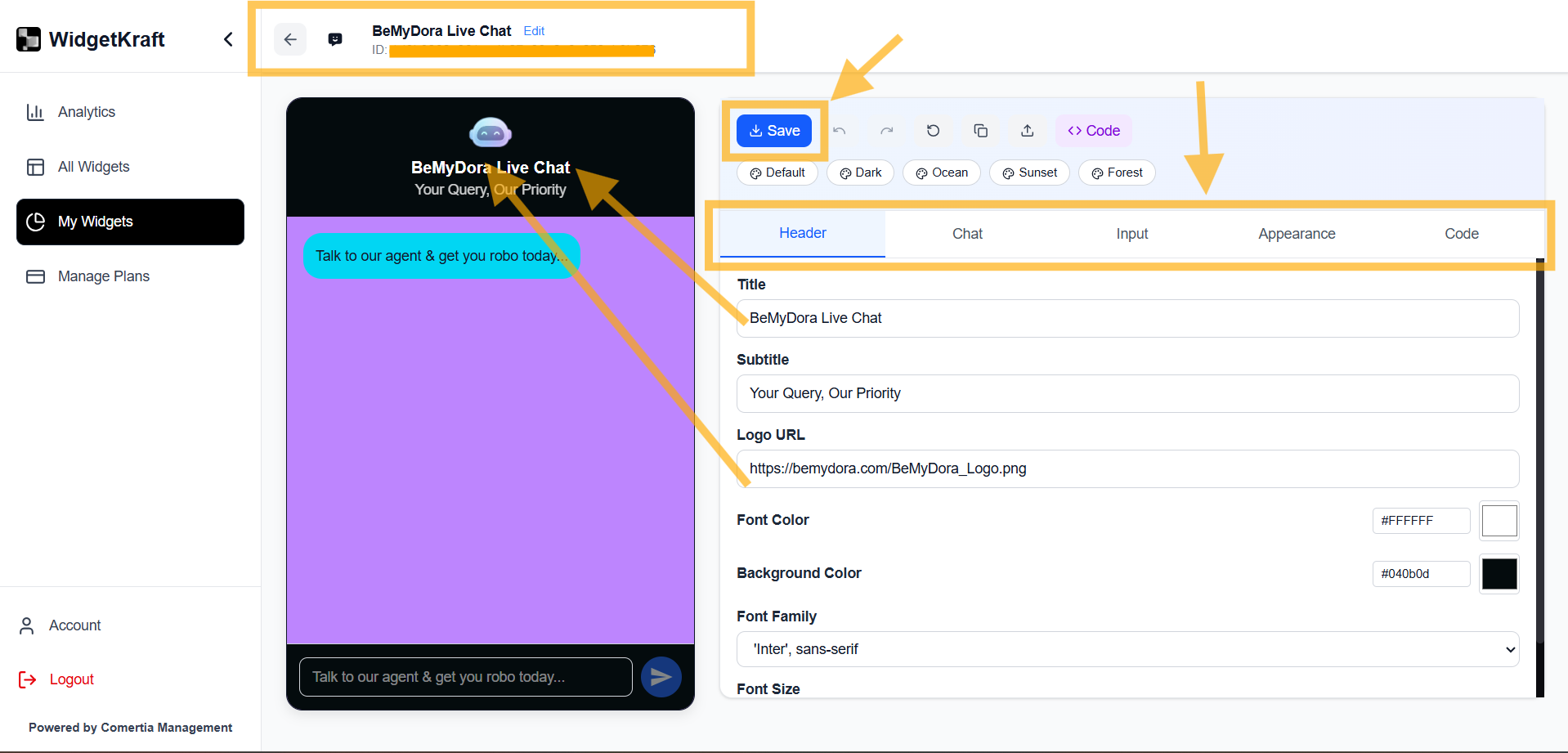
Header

Title, subtitle and branding

Chat

Message bubble styling

Input

Message input configuration

Appearance

Widget size and visual design

Code

Embed snippet

1. Header Tab

Controls the top section of your Live Conversation widget.

Configurable Elements

Title

Main heading displayed at the top

Example: "BellyDora Live Conversation"

Subtitle

Supporting text below the title

Example: "Your Query, Our Priority"

Welcome Message

Initial message shown to visitors

Example: "Talk to our agent & get you robo today..."
WidgetKraft: Header Tab - Custom title, subtitle, and welcome message

Example: Live Conversation header with custom title, subtitle, and welcome message

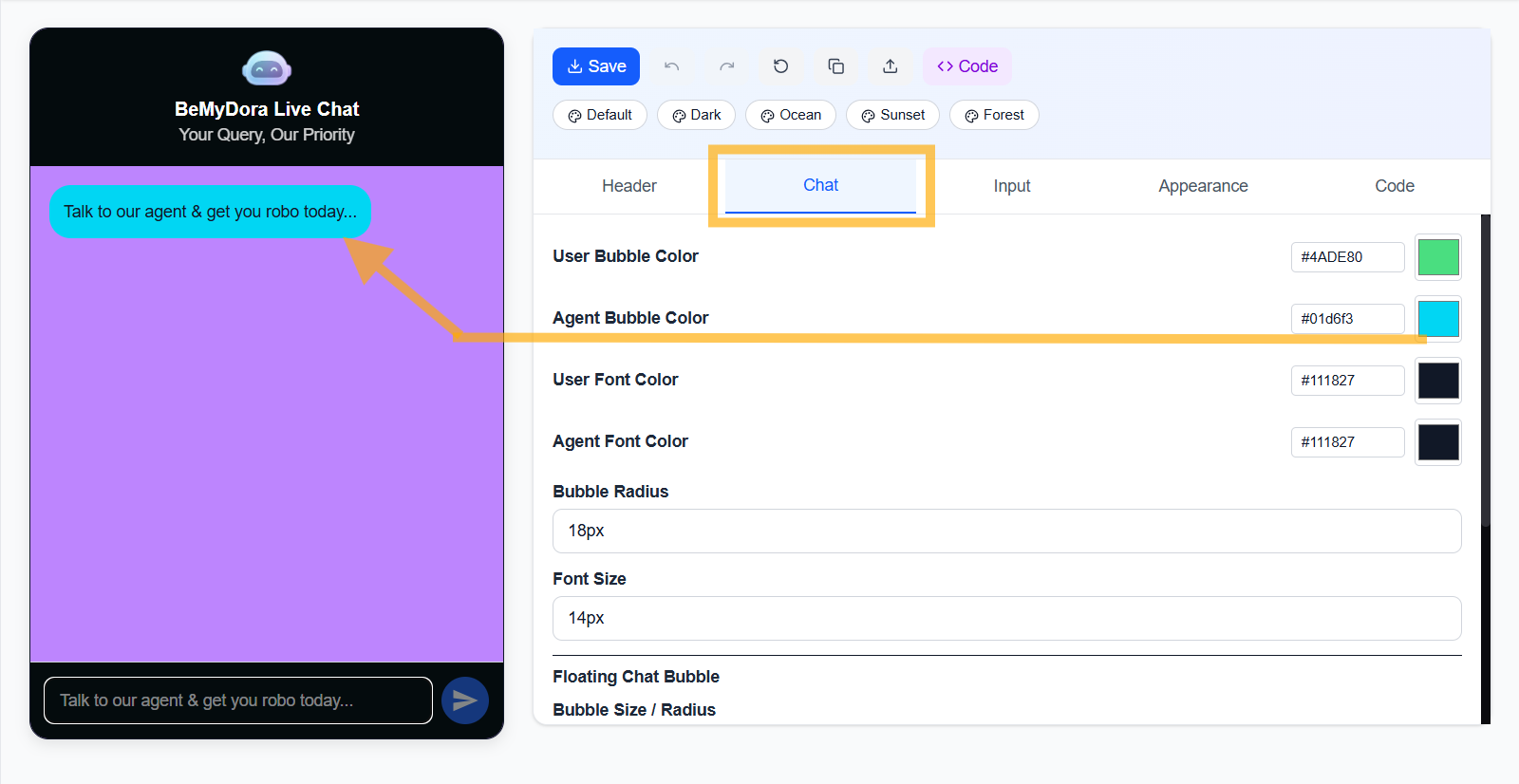
2. Chat Tab

Customize how chat messages appear in conversations.

Message Bubble Customization

User Bubble Color

Color for messages sent by visitors

Agent Bubble Color

Color for agent/support responses

User Font Color

Text color for visitor messages

Agent Font Color

Text color for agent messages

Bubble Radius

Control the roundness of message bubbles

18px

Font Size

Adjust message text size

14px

Floating Chat Bubble

The circular button that opens your chat widget

Bubble Size / Radius

Control the size of the floating chat button

WidgetKraft: Chat Tab - Custom message bubble colors and styling

Example: Live Conversation with custom bubble colors and styling

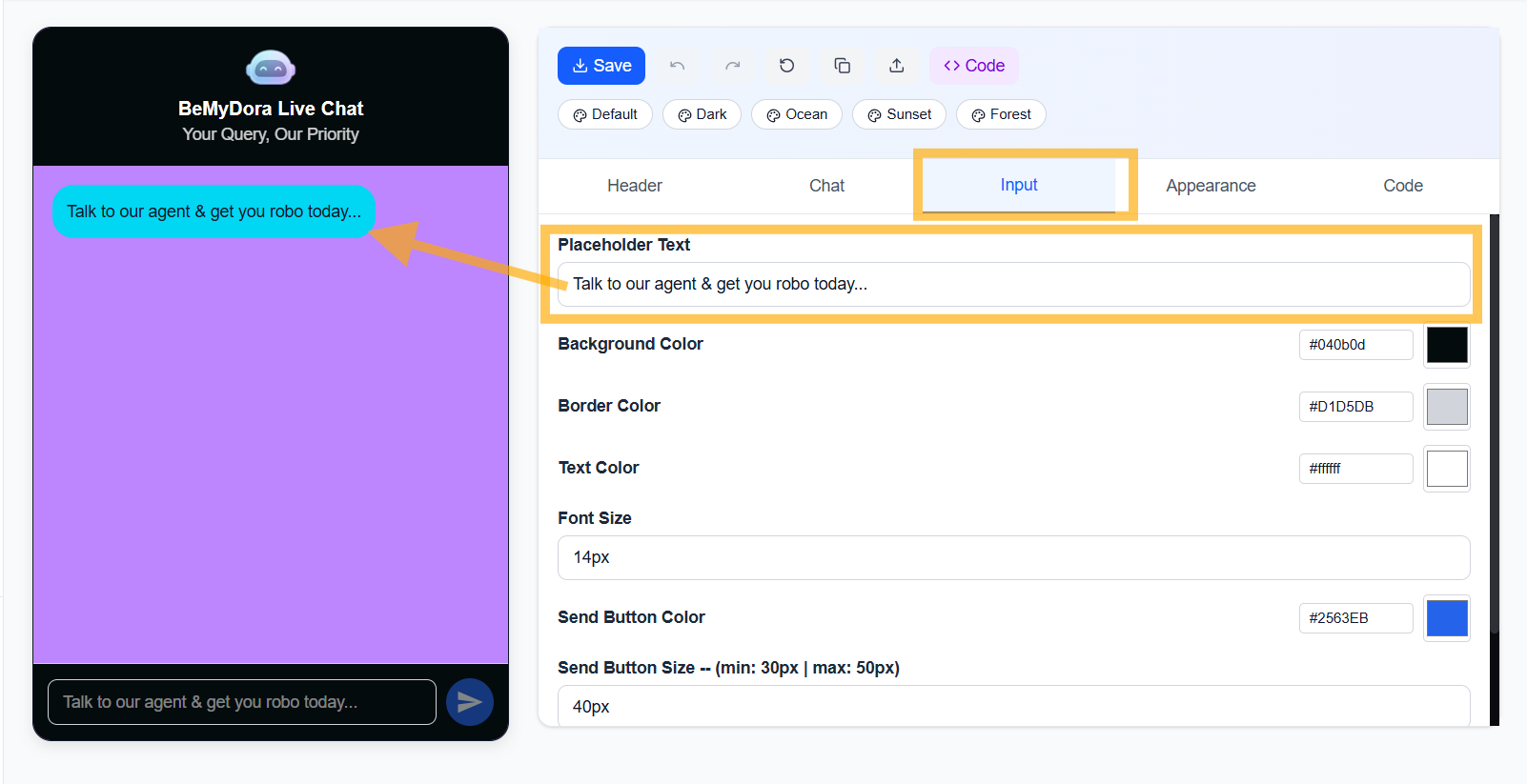
3. Input Tab

Configure the message input area where visitors type.

Input Field Settings

Placeholder Text

Hint text shown in empty input field

Talk to our agent & get you robo today...

Background Color

Input area background color

Border Color

Color of input field border

Text Color

Color of text as user types

Font Size

Size of text in input field

14px

Send Button Color

Color of send/submit button

Send Button Size

Size of the send button

40px (min: 30px | max: 50px)
WidgetKraft: Input Tab - Message input field configuration

Example: Styled input field with custom colors and placeholder

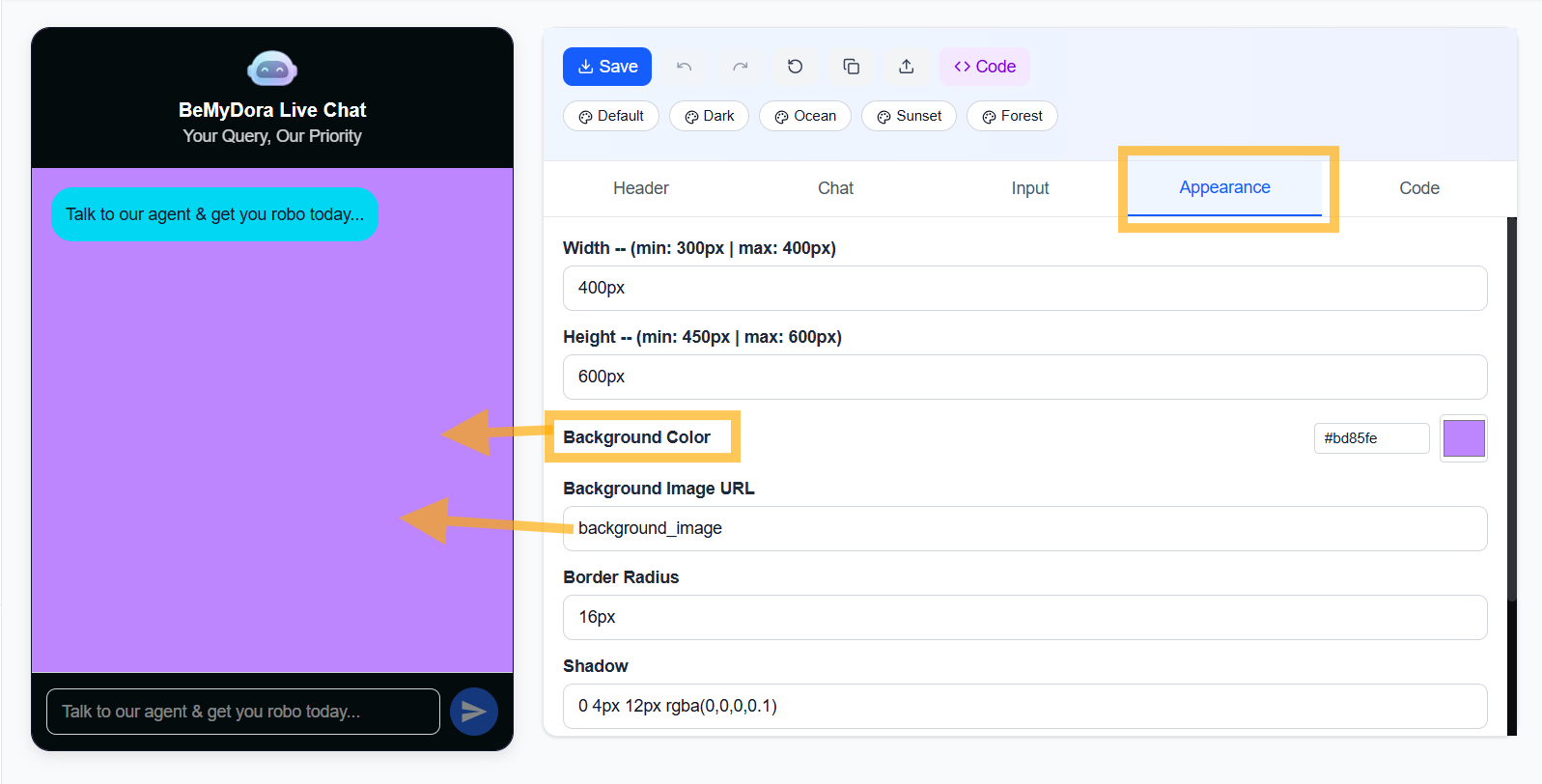
4. Appearance Tab

Control the overall widget dimensions and visual style.

Widget Dimensions

Width

Control how wide the chat window appears

400px (min: 300px | max: 400px)

Height

Set the vertical size of chat window

600px (min: 450px | max: 600px)

Visual Styling

Background Color

Main chat area background color

Background Image URL

Add custom background pattern or image

background_image

Border Radius

Roundness of chat window corners

16px

Shadow

Add depth with drop shadow effect

0.4px 12px rgba(0,0,0,0.1)

Theme Presets

Quick-start with pre-designed themes:

Default
Dark
Ocean
Sunset
Forest

Click any preset to instantly apply coordinated colors across all elements

WidgetKraft: Appearance Tab - Widget dimensions and visual styling

Example: Complete widget with custom dimensions and styling

5. Code (Embedding the Live Conversation)

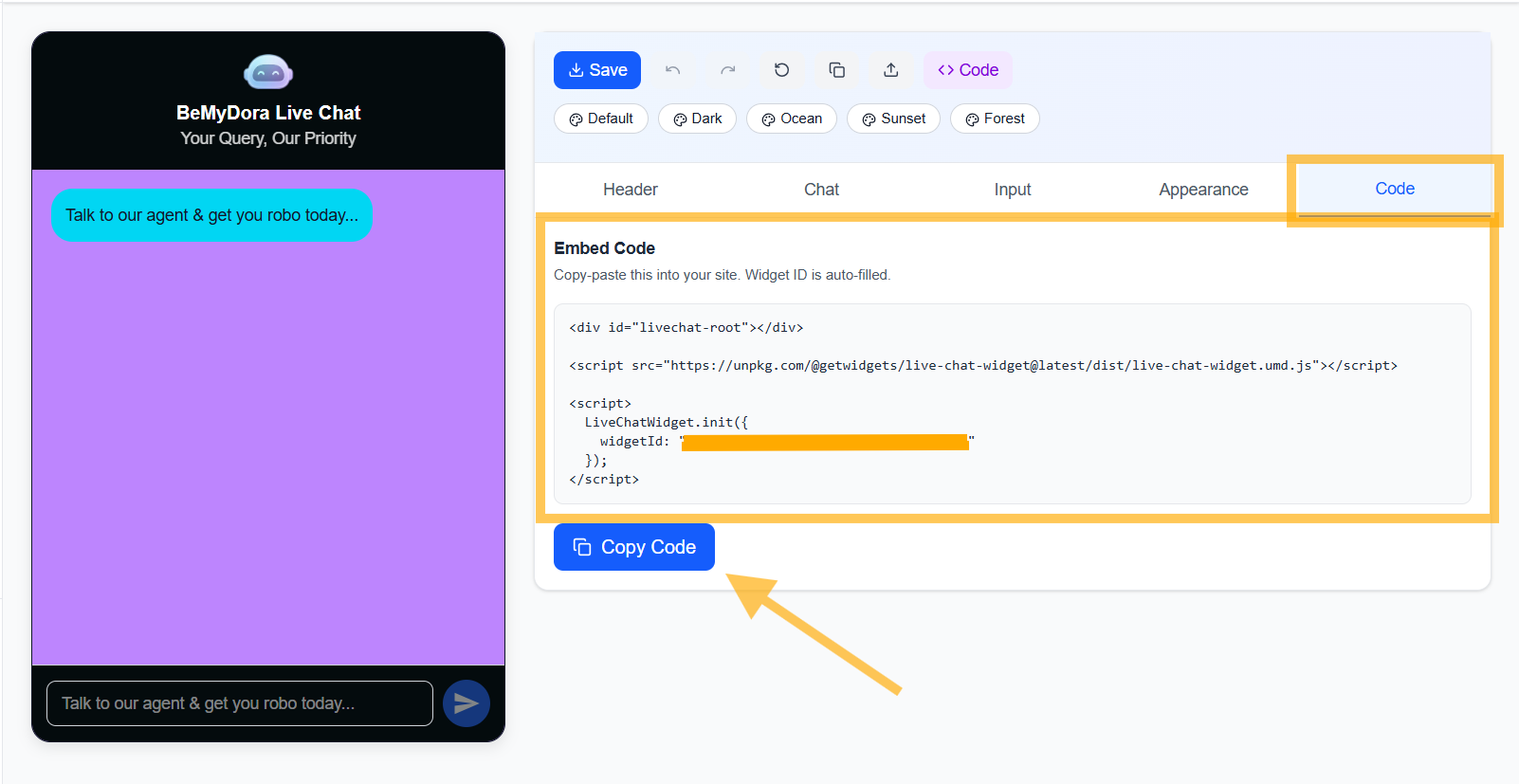
Once your Live Conversation is configured, get the embed code to add it to your website.

Embed Code Section

You'll see a ready-to-use embed snippet that includes your widget ID:

WidgetKraft: Code Tab - Embed code snippet with widget ID

Example: Complete widget with custom dimensions and styling

<div id="livechat-root"></div> <script src="https://unpkg.com/@getwidgets/live-chat-widget@latest/dist/live-chat-widget.umd.js"></script> <script> LiveChatWidget.init({ widgetId: "YOUR_WIDGET_ID_HERE" }); </script>
Widget ID is auto-filled

How to Use the Embed Code

  1. 1Click Copy Code to copy the embed snippet
  2. 2
    Paste it into your website's HTML, typically before the closing </body> tag

    This ensures the Live Conversation loads on every page of your site

  3. 3The Live Conversation will appear as a floating button in the bottom-right corner
  4. 4Visitors can click it to start chatting with your support agents

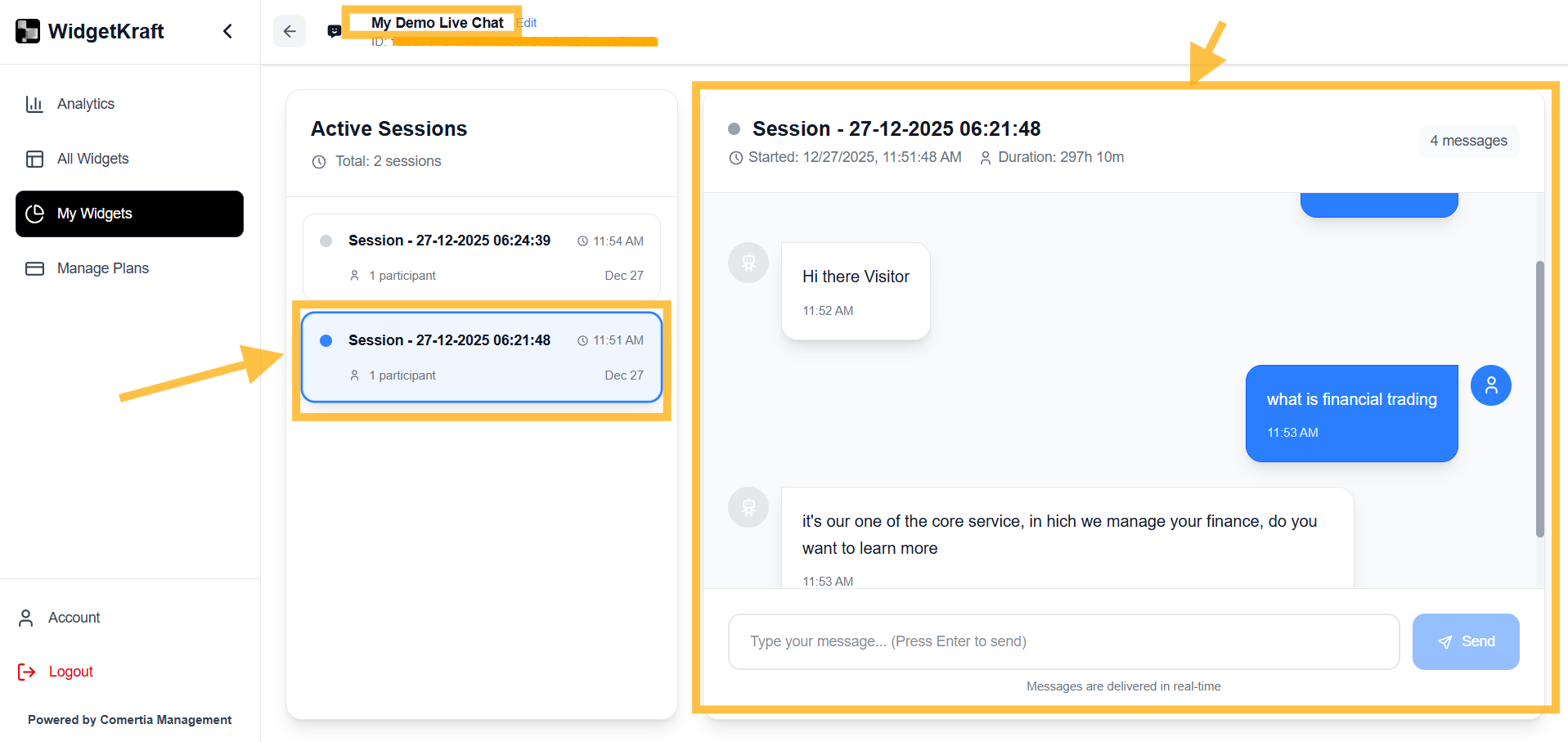
Admin Dashboard & Analytics

Monitor and manage all live conversations from your dashboard:

WidgetKraft: Admin Dashboard - Active sessions and conversations

Admin dashboard showing active sessions and conversations

Integration & Technical Notes

  • Real-time messaging: Messages are delivered instantly with WebSocket connections
  • Agent interface: Support agents can manage multiple conversations from one dashboard
  • Session management: Track active sessions, duration, and conversation history
  • Mobile responsive: Works seamlessly on all devices and screen sizes
  • Powered by Comerita Management: Professional support and infrastructure

Summary

The Live Conversation Widget allows you to:

Provide real-time support to website visitors instantly
Customize appearance to match your brand identity
Manage conversations from a central admin dashboard
Track active sessions and conversation analytics
Embed with a single script tag—no complex setup
Boost conversions with instant customer support

Message: are delivered in real-time – Your visitors get instant responses, creating a seamless support experience that builds trust and drives conversions.