Platform →

Contact Form Widget

The Contact Form Widget lets you collect structured leads, inquiries, and messages directly from your website—without building backend logic or managing multiple form tools.

Pricing:0.4 credit / submission

You Can Fully Customize:

Fields and validation
Visual design and theme
Button labels and text
Embed behavior (inline or section-based)

All submissions are captured inside your WidgetKraft dashboard.

Creating a Contact Form Widget

To create a Contact Form widget:

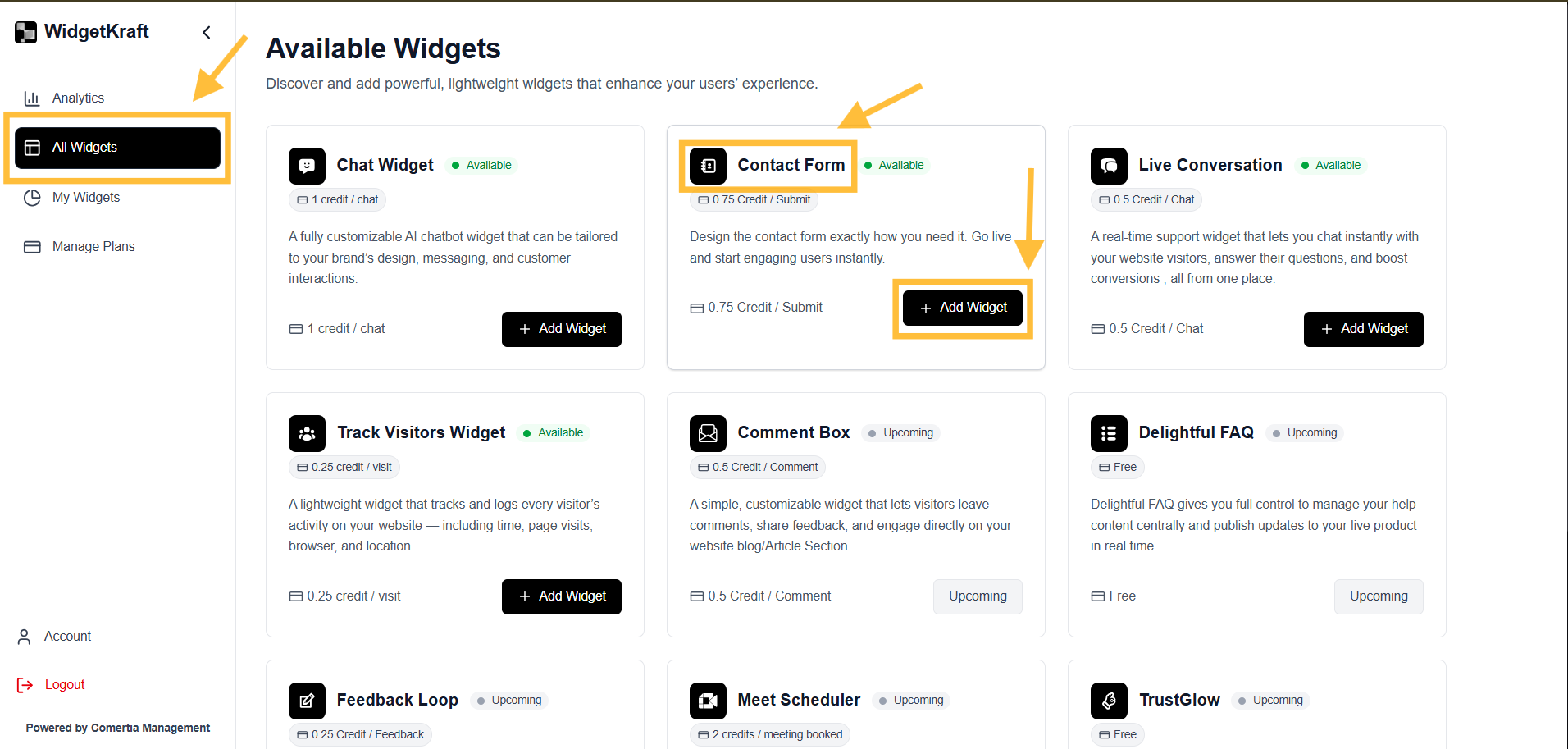
  1. 1Go to All Widgets → Contact Form
  2. 2Click + Add Widget
  3. 3Go to My Widgets → Contact Form
  4. 4Click Configure
WidgetKraft: Creating a Contact Form Widget - Dashboard Selection

Screenshot: Dashboard → Create Widget → Select Contact Form

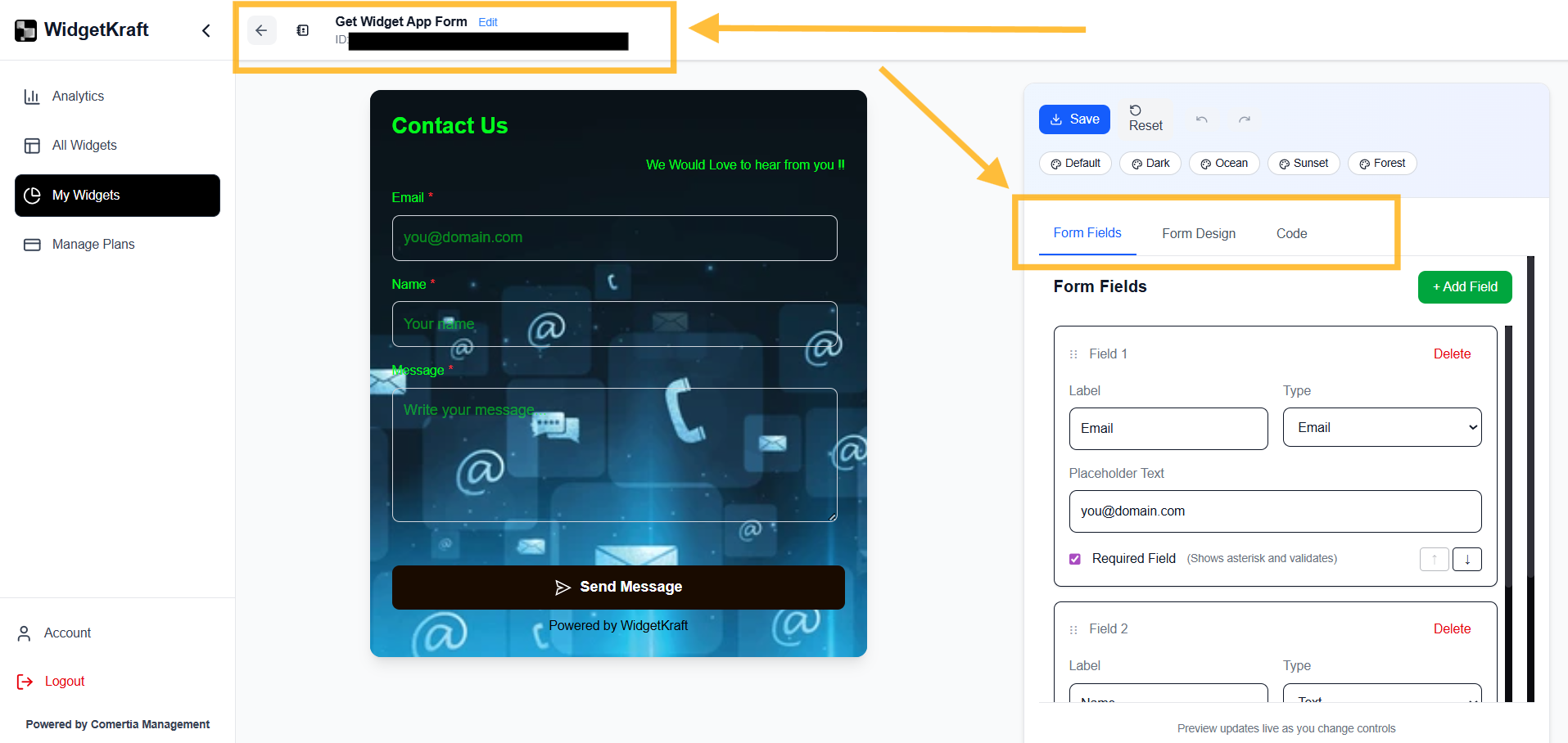
The form editor opens with a live preview on the left and controls on the right. Any change you make updates the preview instantly.

Understanding the Contact Form Editor

The editor is divided into three main sections:

Form Fields

What data you collect

Form Design

How the form looks

Code

How you embed it

WidgetKraft: Form Editor Interface with Live Preview

Screenshot: Form Editor Interface with Live Preview

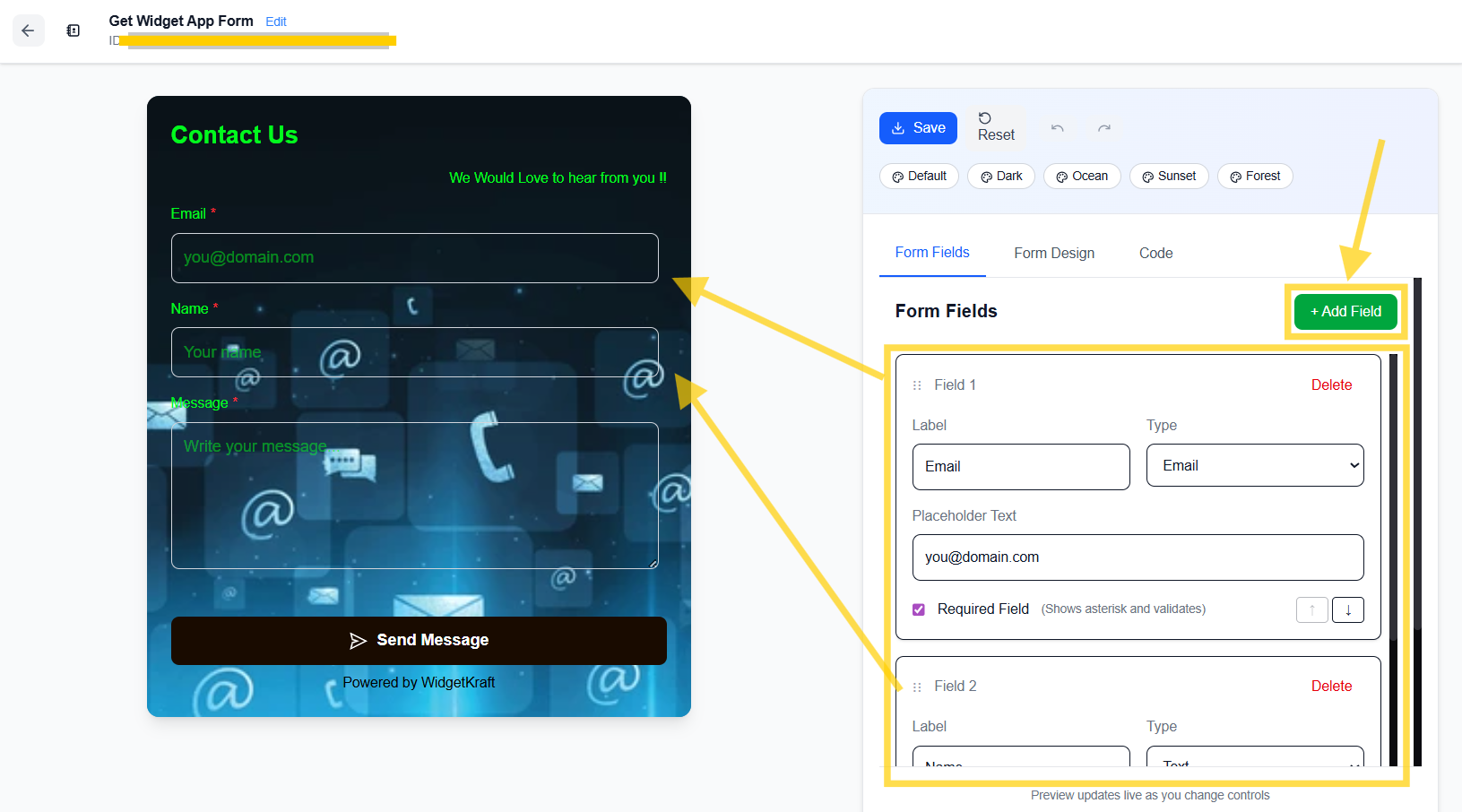
1. Form Fields

This section controls what information the visitor submits.

Adding Fields

  • • Click + Add Field
  • • Choose the field type (Email, Text, Textarea, etc.)
  • • Each field appears immediately in the live preview

Field Settings

For each field, you can configure:

Label

What the user sees above the field

Example: Email, Name, Message

Type

Determines validation and input behavior

Email → validates email format
Text → single-line input
Textarea → multi-line message input

Placeholder Text

Hint text shown inside the field

Example: you@domain.com

Required Field

When enabled:

• Shows an asterisk (*)
• Prevents submission unless filled
• Automatically validates input
WidgetKraft: Form Fields - Field Settings Panel

Screenshot: Field Settings Panel

Reordering Fields

Use the up / down arrows to reorder fields. The preview updates instantly so you can see the final layout.

Deleting Fields

Click Delete on any field. The field is removed immediately from the form.

💡 Best practice:

Keep forms short (3–5 fields) to improve submission rates.

2. Form Design

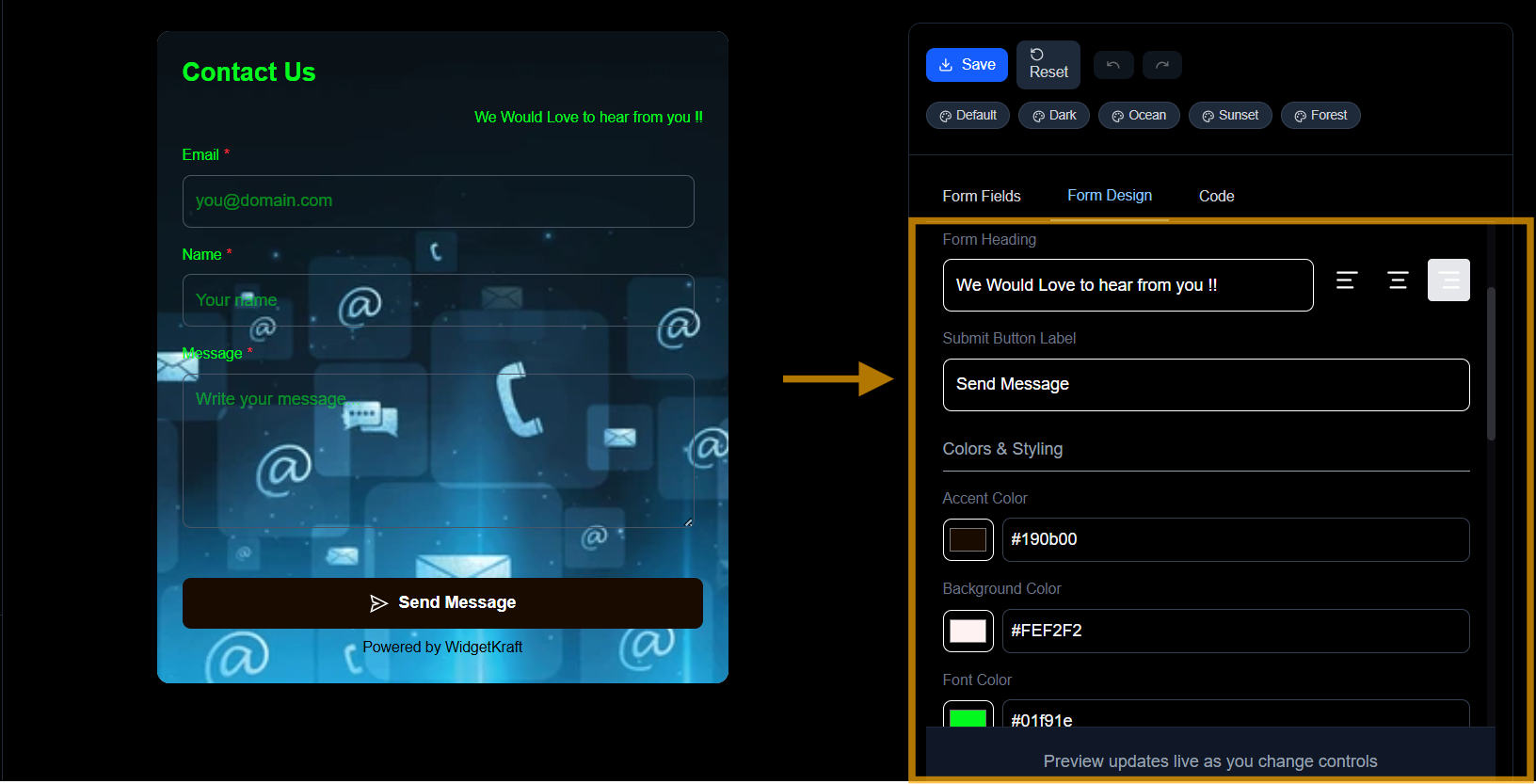
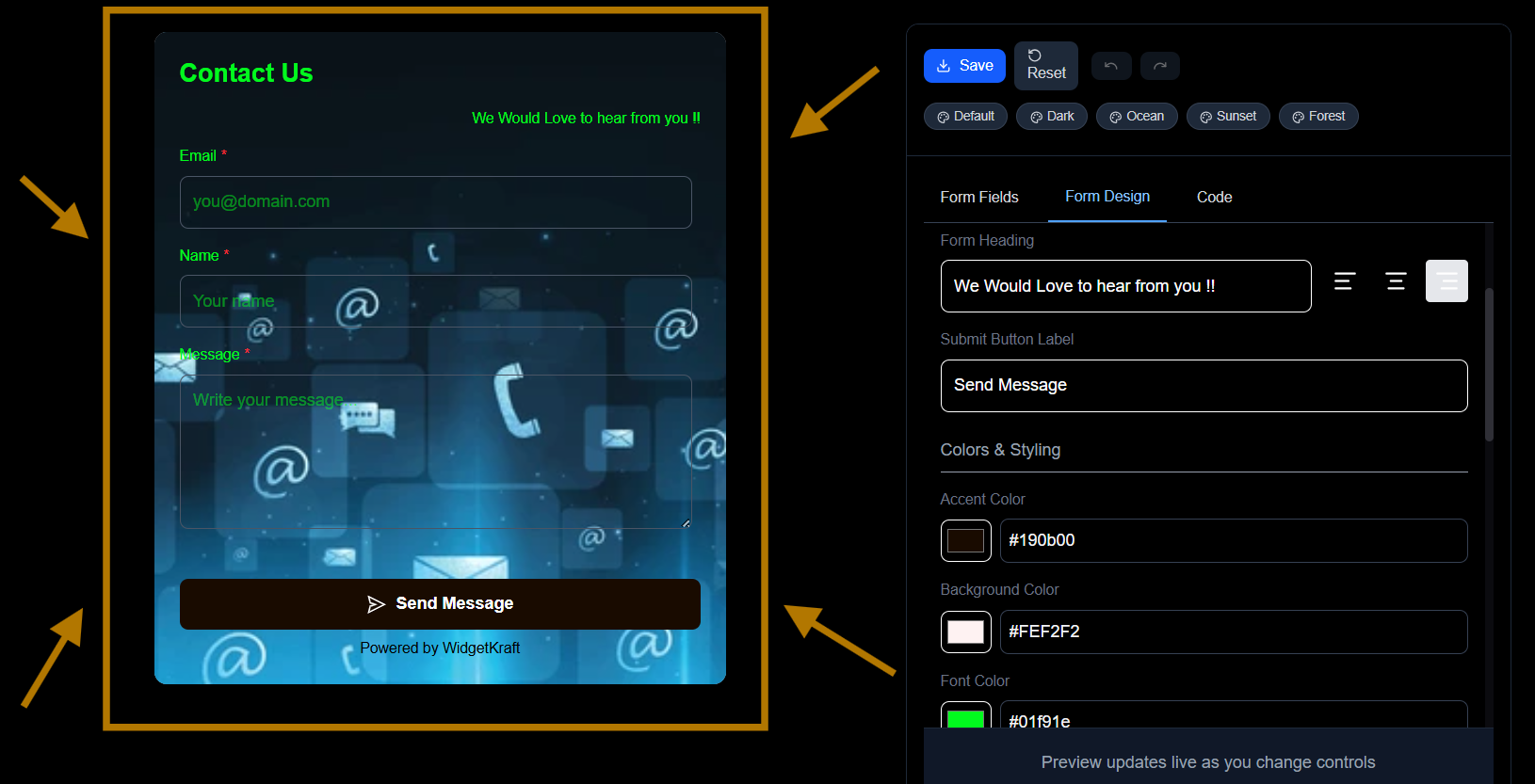
This section controls how the form looks and feels.

Form Text

You can customize:

Form Title

Example: Contact Us

Form Heading / Subtitle

Example: We would love to hear from you!

Submit Button Label

Example: Send Message, Request Demo, Get in Touch

These text elements appear instantly in the preview.

Theme Presets

At the top, you'll see preset themes like:

Default
Dark
Ocean
Sunset

Clicking a preset automatically adjusts:

  • • Background
  • • Text contrast
  • • Accent colors

You can use presets as-is or customize further.

WidgetKraft: Form Design - Theme Presets and Color Customization

Screenshot: Theme Presets & Color Customization

Colors & Styling

You can manually adjust:

Accent Color

Used for highlights, button emphasis, and accents

Background Color

Controls the form container background

Text Contrast & Visibility

Automatically optimized for readability

All changes reflect live in the preview panel.

WidgetKraft: Form Design - Live Preview Panel

The left panel always shows the exact final form. What you see here is exactly what visitors will see on your website. No save required to preview changes.

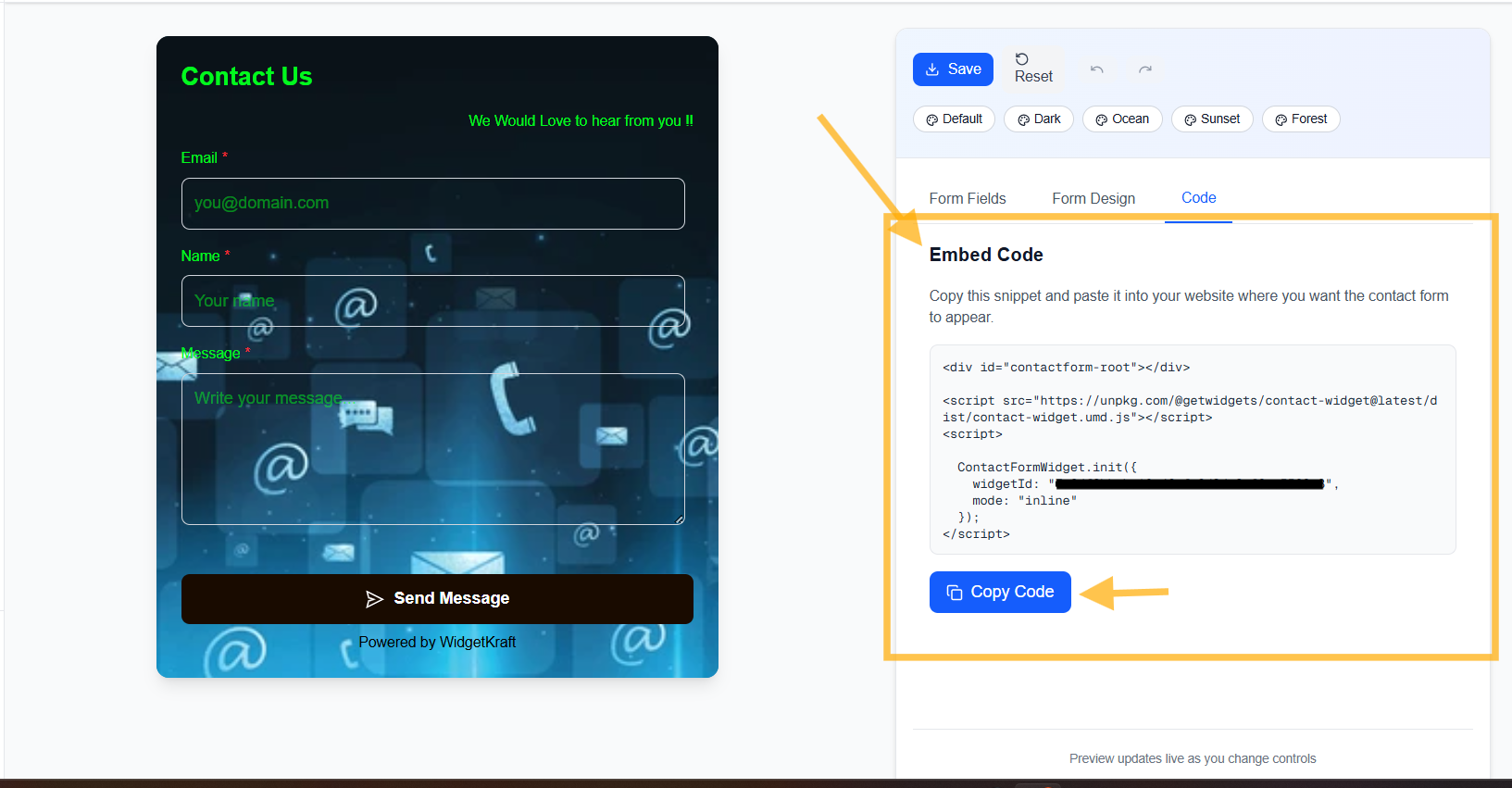
3. Code (Embedding the Form)

Once your form is ready, go to the Code tab.

Embed Code Section

You'll see a ready-to-use embed snippet:

<script src="https://unpkg.com/@getwidgets/contact-widget@latest/dist/contact-widget.umd.js"></script> <script> ContactFormWidget.init({ widgetId: "7aaaaaaa-xxxx-yyyy-zzzz-2bbbbbbbbbbb", mode: "inline" }); </script>
Copy Code

How to Use the Embed Code

  1. 1Click Copy Code
  2. 2Paste it into your website where you want the form to appear:
    • • Contact page
    • • Footer section
    • • Landing page section

No backend setup required.

WidgetKraft: Code Tab - Embed Code with Copy Button

Screenshot: Embed Code Tab with Copy Button

Embed Modes

Currently supported:

Inline mode – form appears exactly where the code is pasted

(Additional display modes may be added in future releases.)

Saving & Publishing

  • • Click Save at the top to store changes
  • • Updates apply instantly to all live embeds
  • • No redeploy or cache clearing required

What Happens After Submission

When a visitor submits the form:

Submission is stored in your WidgetKraft dashboard
Credits are consumed only on successful submission
Data is isolated per widget and per account

Paid plans can enable:

  • • Email notifications
  • • CSV exports

Best Practices for Contact Forms

Place the form near high-intent sections (pricing, services, demos)

Use clear button labels (Request Quote works better than Submit)

Avoid unnecessary fields

Match form design to your site branding using accent colors

Summary

The Contact Form Widget allows you to:

Build and deploy forms in minutes
Customize fields, design, and text visually
Embed using a single script
Collect leads without backend complexity

It's designed to be simple for first-time users and powerful enough for growing teams.