Slack Integration Guide
Connect your widgets to Slack and receive real-time notifications
What is Slack Integration?
The Slack integration allows you to receive instant notifications in your Slack workspace whenever users interact with your widgets. Whether it's a new chat message, feedback submission, or form completion, your team stays informed in real-time.
Key Benefits:
- Instant notifications for all widget activities
- Route notifications to specific channels
- Support for both public and private channels
- No code required - simple click-to-connect setup
Step 1: Connect Slack to WidgetKraft
First, you need to authorize WidgetKraft to access your Slack workspace.
How to Connect:
- 1
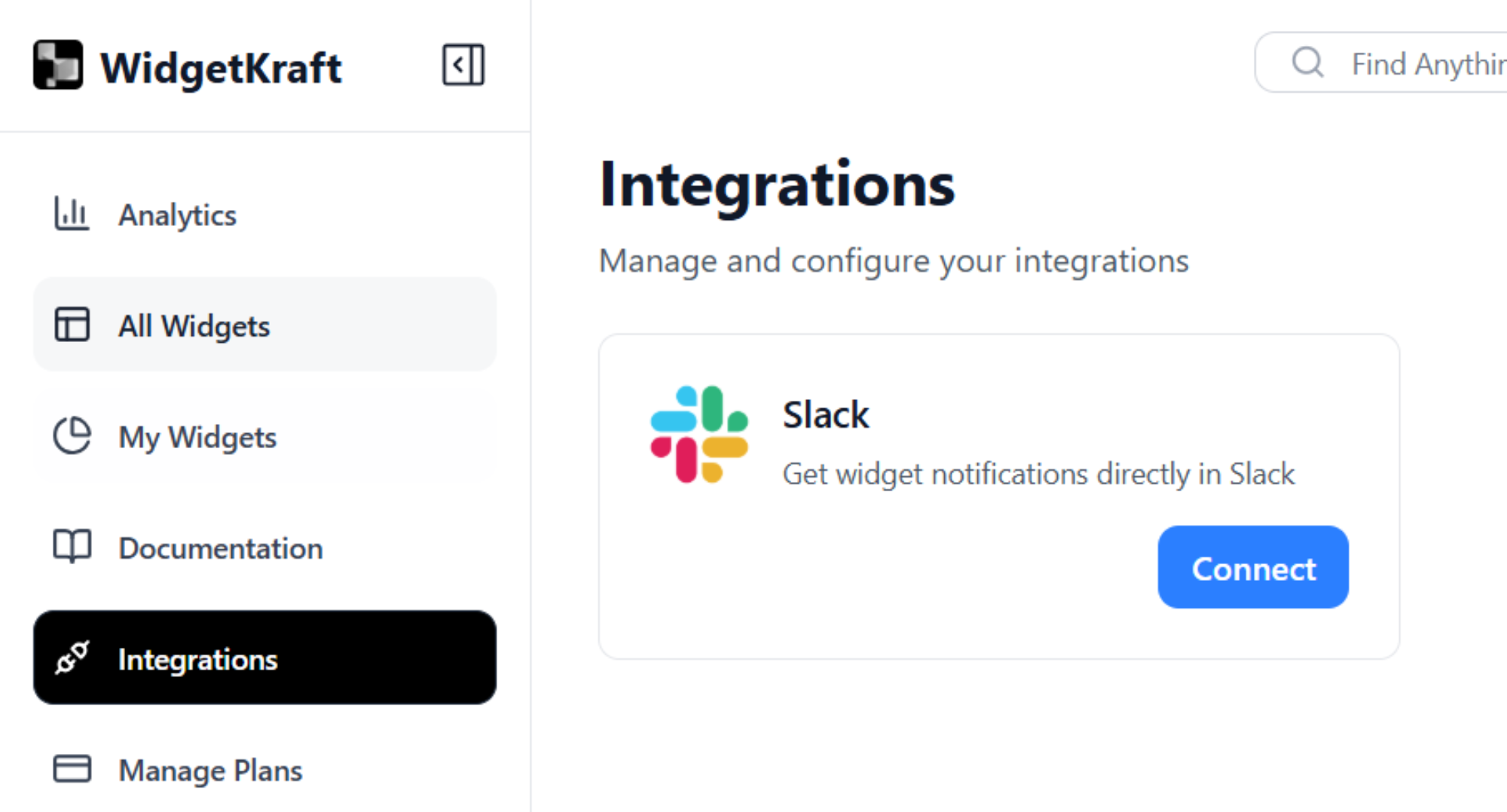
Navigate to the Integrations section from the sidebar menu
- 2
You will see the Slack integration card with a Connect button
- 3
Click the Connect button to begin the authorization process

Integrations page showing the Slack Connect button
Step 2: Authorize Slack Workspace Access
Grant WidgetKraft permission to access your Slack workspace and channels.
Authorization Process:
- 1
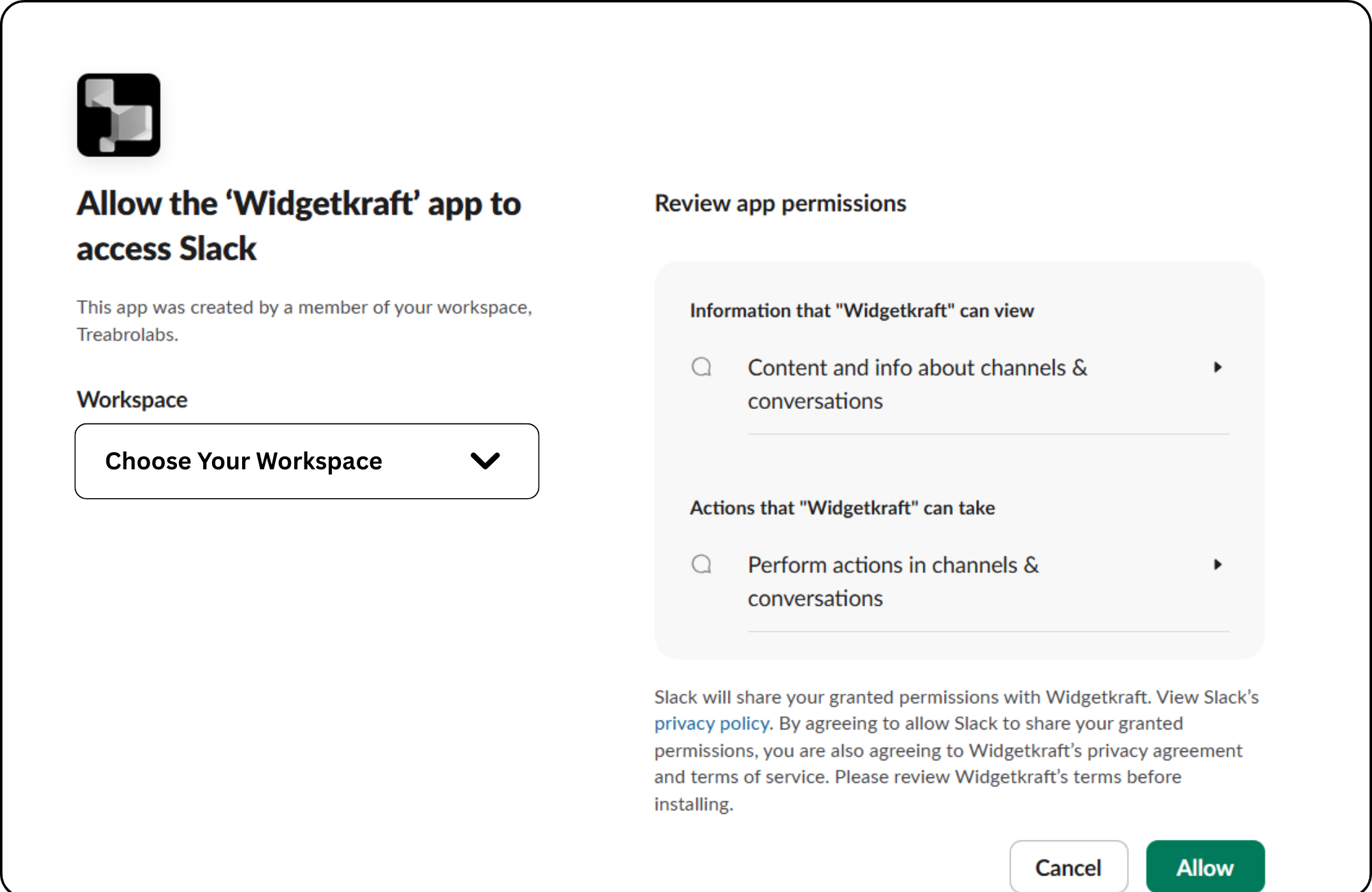
A Slack authorization page will open in a new window/tab
- 2
Select your Slack workspace from the dropdown (if you have multiple workspaces)
- 3
Review the permissions that WidgetKraft is requesting:
- View content and info about channels & conversations
- Send messages and perform actions in channels
- 4
Click Allow to grant WidgetKraft access to your workspace

Slack authorization page showing workspace selection and permissions
Step 3: Connection Confirmed
Once authorized, you'll be redirected back to WidgetKraft.
What Happens Next:
You'll be automatically redirected back to the WidgetKraft Integrations page
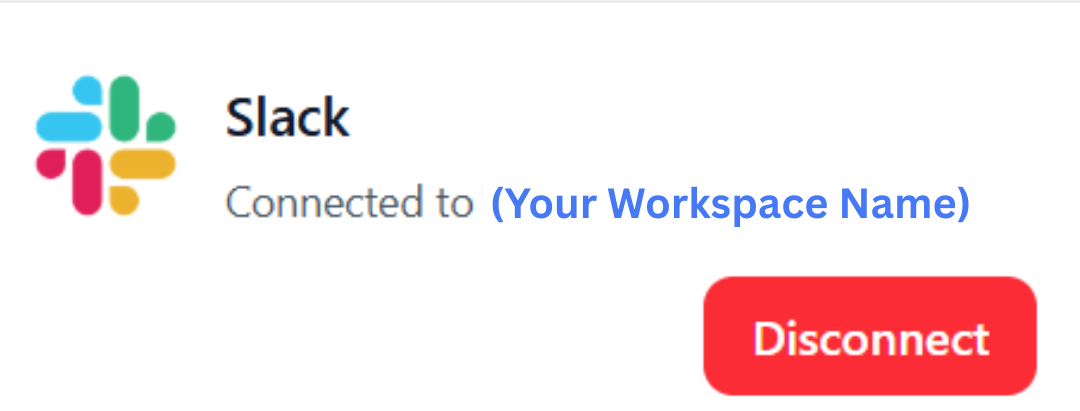
The Slack card will now show "Connected to (Your Workspace Name)" with your workspace name
A Disconnect button will be available if you need to revoke access

Slack integration showing "Connected to (Your Workspace Name)" status
Success! Slack is now connected to your WidgetKraft account. You can now configure individual widgets to send notifications to specific Slack channels.
Step 4: Connect a Widget to a Slack Channel
Now that Slack is connected, you can configure individual widgets to send notifications to specific channels.
Configuration Process:
- 1
Go to the widget you want to connect (e.g., Live Chat, Feedback Loop, Contact Form)
- 2
Open the widget's configuration panel
- 3
Look for the Connect Slack Channel button in the settings
Important: This button will be disabled/grayed out if Slack is not connected to your WidgetKraft account. It becomes clickable only after completing Steps 1-3.
- 4
Click the Connect Slack Channel button
- 5
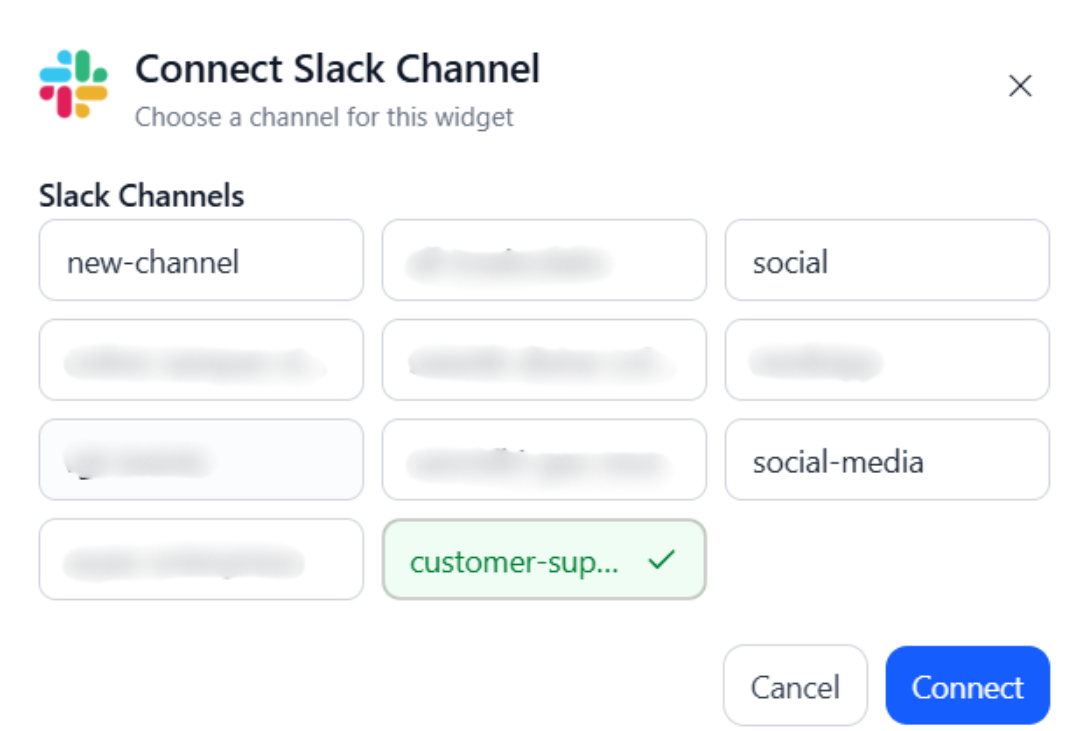
A modal will appear showing all available Slack channels from your workspace

Modal showing all available public Slack channels to connect

Widget configuration panel showing the Connect Slack Channel button
Step 5: Select Your Slack Channel
Choose which Slack channel should receive notifications from this widget.
Channel Selection:
Public Channels
All public channels in your workspace will be displayed automatically in the channel selection modal.
- Browse through the list of channels (e.g., #new-channel, #social, #social-media)
- Click on the channel you want to connect
- Selected channel will be highlighted (e.g., with a green background and checkmark)
Private Channels
Private channels won't appear in the list initially. To connect a private channel:
- 1Open Slack and navigate to the channel where you want to add the app
- 2Click the channel name at the top to open channel settings
- 3Select "Integrations" or "Apps" from the menu
- 4Click "Add an app" or "Invite an app"
- 5Search for the Widgetkraft app and select it to invite
- 6The app is now added and can post messages in this channel
- 7Return to WidgetKraft and open the channel selection modal again
- 8Your private channel will now appear in the list
Finalizing Connection:
- After selecting your desired channel, click the Connect button
- The modal will close and the widget will now be connected to that Slack channel
- You'll start receiving notifications in the selected channel whenever users interact with this widget
All Done! Your widget is now connected to Slack. Any activity on this widget will send real-time notifications to your chosen Slack channel.
Managing Your Slack Integration
Learn how to modify, disconnect, or troubleshoot your Slack integration.
Common Actions:
Change Connected Channel
To connect a widget to a different Slack channel:
- Go to the widget's configuration panel
- Click "Connected to (Your Channel Name)"
- Disconnect the current channel
- Select a new channel from the modal
- Click "Connect Slack Channel" again
- Select Differnt channel this time
- Click "Connect" to update
Disconnect Slack from WidgetKraft
To completely disconnect Slack from your WidgetKraft account:
- Go to the Integrations page
- Find the Slack integration card (showing "Connected to (Your Workspace Name)")
- Click the red "Disconnect" button
- Confirm the disconnection
- All widget-to-channel connections will be removed
Note: Disconnecting will stop all Slack notifications for all widgets
Multiple Widgets, Different Channels
You can connect different widgets to different Slack channels. For example:
- • Live Chat Widget → #customer-support
- • Feedback Loop Widget → #product-feedback
- • Contact Form Widget → #sales-inquiries
Each widget can maintains its own Slack channel connection independently.
Troubleshooting
Q: The "Connect Slack Channel" button is disabled
Solution: This means Slack is not connected to your WidgetKraft account yet. Complete Steps 1-3 first to authorize Slack integration.
Q: My private channel doesn't appear in the list
Solution: Invite WidgetKraft to your private channel by typing @WidgetKraft in the channel and accepting the invitation prompt.
Q: I'm not receiving notifications
Check:
- • Verify Slack is connected (green status on Integrations page)
- • Confirm the widget is connected to a specific channel
- • Test the widget to trigger a notification
- • Check if WidgetKraft bot is still in the channel
Q: Can I connect multiple widgets to the same channel?
Answer: Yes! You can connect multiple widgets to the same Slack channel. All notifications will appear in that channel, tagged by widget type.
Summary
With Slack integration, you can:
Stay connected and responsive – With Slack integration, your team never misses important customer interactions. Whether it's a support request, feedback, or a new lead, you'll know instantly.