Platform →

Current Page URL: https://docs.widgetkraft.com/integrations/connect-discord

Discord Integration Guide

Connect your widgets to Discord and receive real-time notifications in your server

What is Discord Integration?

The Discord integration allows you to receive instant notifications in your Discord server whenever users interact with your widgets. Connect WidgetKraft to your Discord guild and route widget activity - chat messages, form submissions, feedback - directly to the channels your team already uses.

Key Benefits:

  • Instant notifications for all widget activities in your Discord server
  • Route notifications to any channel within your connected guild
  • Switch guilds anytime without losing your account connection
  • No code required - simple click-to-connect setup

Step 1: Connect Discord to WidgetKraft

First, authorize WidgetKraft to access your Discord account.

How to Connect:

  1. 1

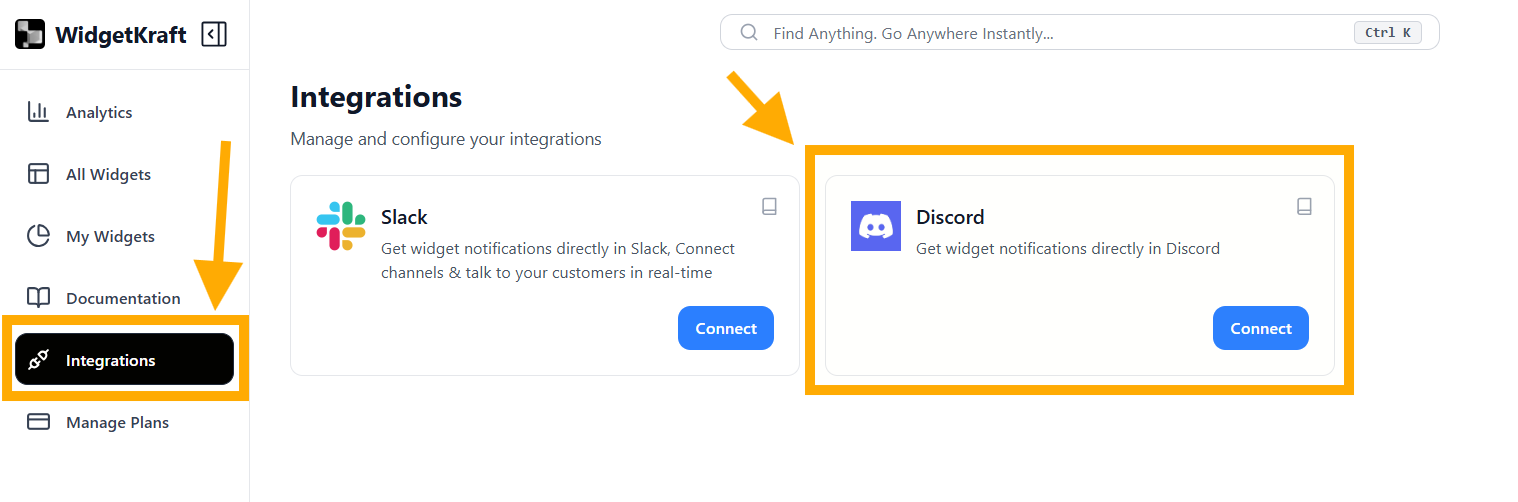
    Navigate to the Integrations section from the sidebar menu

  2. 2

    You will see the Discord integration card with a Connect button

  3. 3

    Click the Connect button to begin the OAuth authorization process

WidgetKraft: Discord Integration Card in Integrations Section

Integrations page showing the Discord Connect button

Step 2: Complete OAuth Authorization

Grant WidgetKraft permission to access your Discord account. Once done, you'll be redirected back automatically.

Authorization Process:

  1. 1

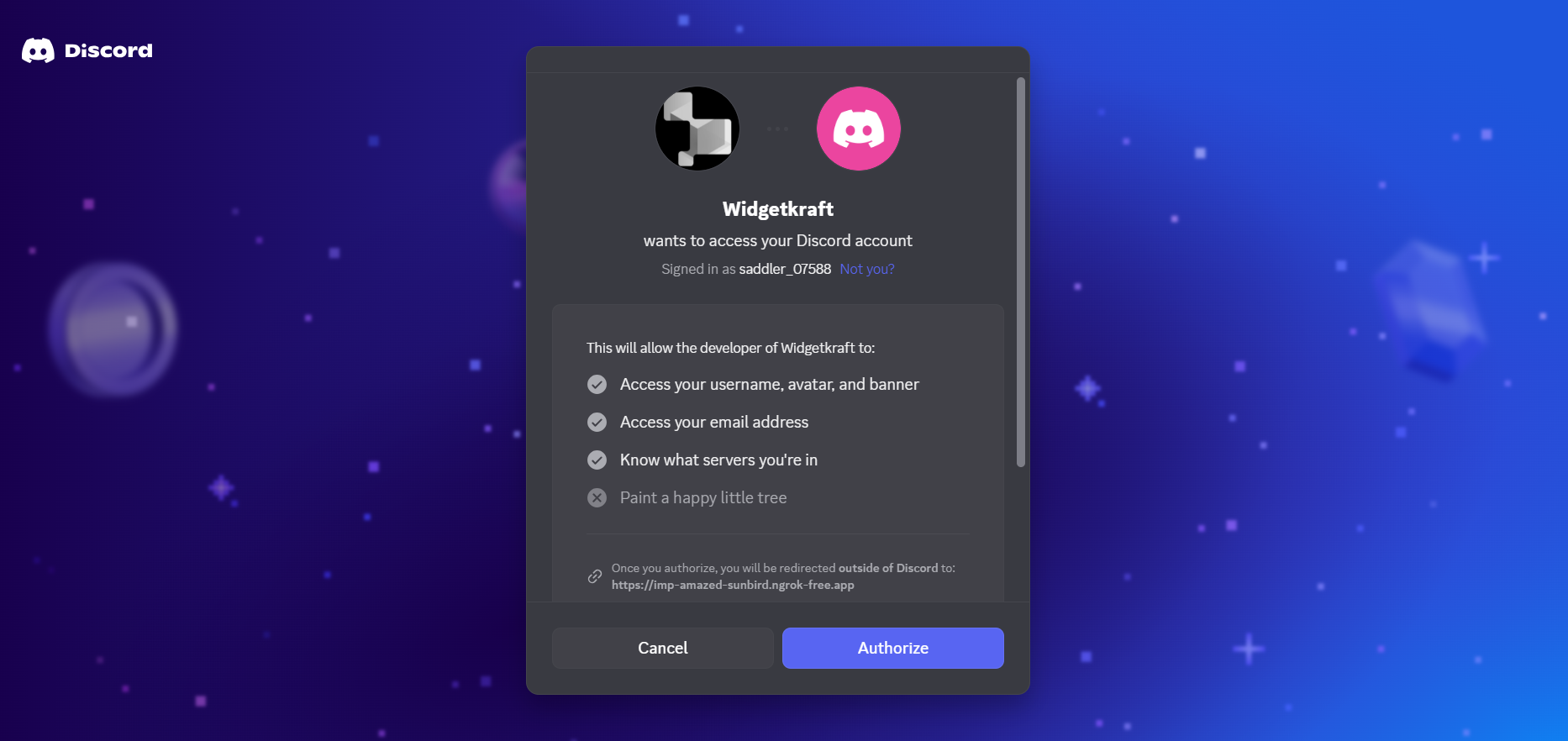
    A Discord authorization page will open, asking you to log in if you aren't already

  2. 2

    Review the permissions WidgetKraft is requesting:

    • Access your username, avatar, and account information
    • Know which guilds you are a member of
  3. 3

    Click Authorize to grant access

  4. 4

    You will be automatically redirected back to the WidgetKraft Integrations page, where the Discord card will now show "Connected to (Your Account)"

WidgetKraft: Discord OAuth Authorization Screen

Discord authorization page showing permissions requested by WidgetKraft

Account Connected! Your Discord account is now linked to WidgetKraft. The next step is to connect a specific Discord server (guild) so WidgetKraft knows where to send notifications.

Step 3: Connect a Guild

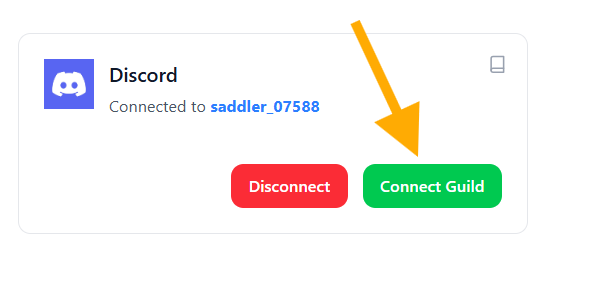
After your account is connected, you'll see two new options on the Discord card - Disconnect and Connect Guild. Click Connect Guild to proceed.

Selecting Your Guild:

  1. 1

    Click the Connect Guild button on the Discord integration card

  2. 2

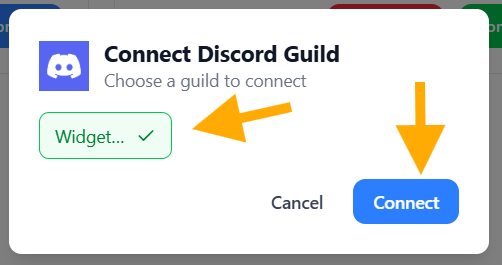
    A popup will appear listing all Discord servers (guilds) where you have Admin access

    Note: Only guilds where you have administrator permissions will appear in this list.

  3. 3

    Select the guild you want to connect to WidgetKraft and click Connect

WidgetKraft: Click on Connect Guild to fetch all the guilds

Click on Connect Guild to fetch all the guilds

WidgetKraft: Connect Guild Popup

Guild selector popup showing all servers you have admin access to

Step 4: Allow the WidgetKraft Bot into Your Guild

When connecting WidgetKraft to a guild for the first time, you need to authorize the WidgetKraft bot to join your server so it can post notifications.

Bot Authorization:

  1. 1

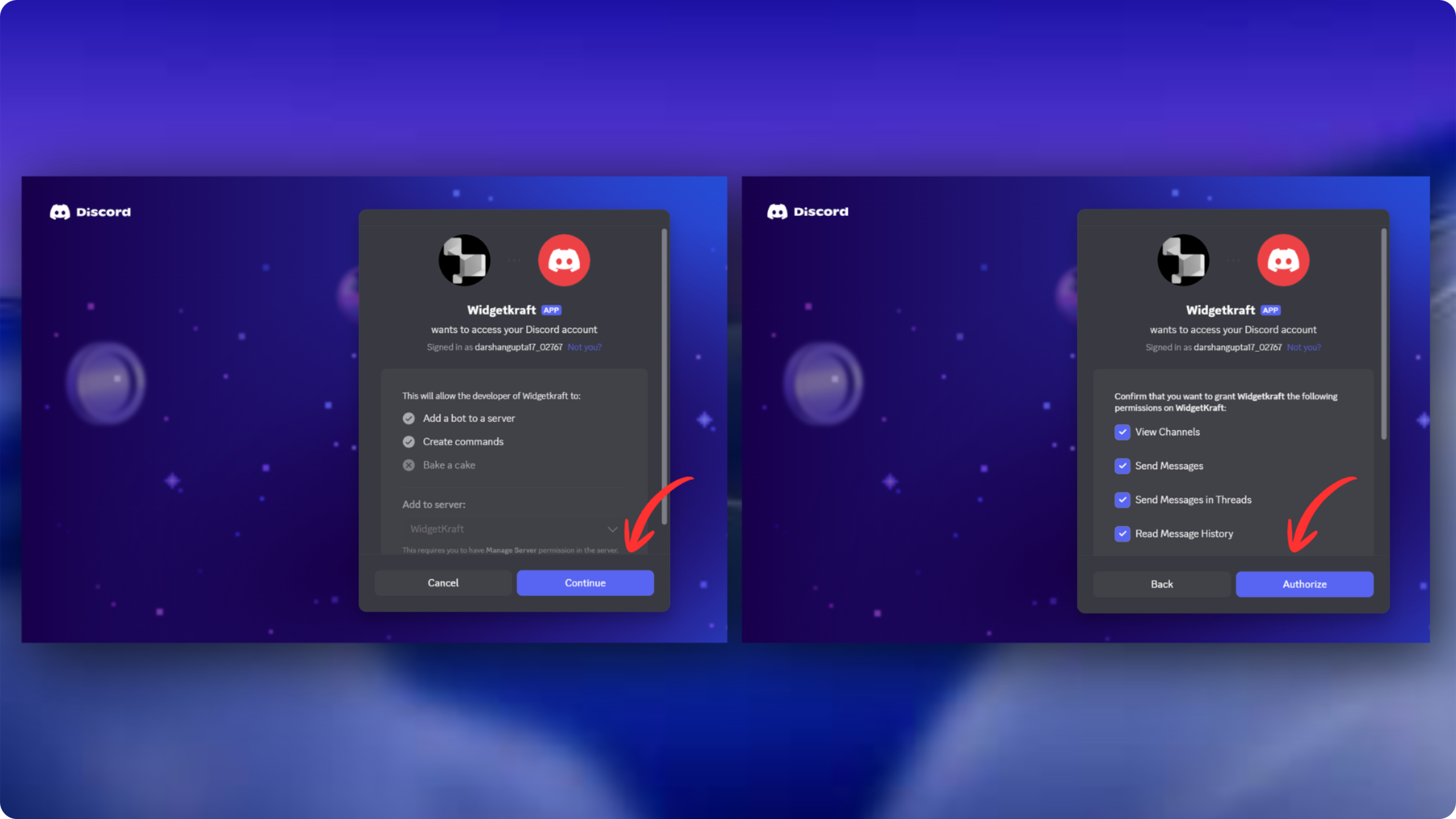
    After selecting your guild, you will be redirected to a Discord page asking you to authorize the WidgetKraft bot to join the selected server

  2. 2

    Review the permissions the bot is requesting - these are required for WidgetKraft to post messages in your server's channels:

    • Send messages in text channels
    • Read channel information and messages
  3. 3

    Confirm the server shown in the dropdown matches the guild you selected, then click Authorize

  4. 4

    Complete any CAPTCHA or verification steps Discord presents

WidgetKraft: Discord Bot Authorization Screen

Discord bot authorization page - authorize WidgetKraft to join your selected guild

First-time only: This bot authorization step only happens the first time you connect a particular guild. Switching to a different guild later will trigger this step again for that new guild.

Step 5: Guild Successfully Connected

Once the bot is authorized, you'll be redirected back to WidgetKraft with your guild connection confirmed.

What You'll See:

  • You'll be automatically redirected back to the WidgetKraft Integrations page

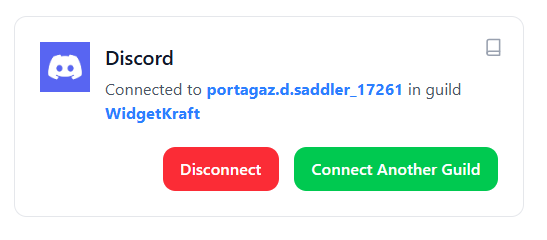
  • The Discord card will now display "Connected to (Your Account) in guild (Your Guild Name)"

  • Two action buttons will now be visible: Disconnect and Connect Another Guild

WidgetKraft: Discord Successfully Connected with Guild

Discord card showing connected account and guild name

Guild Connected! WidgetKraft is now linked to your Discord server. You can now connect individual widgets to specific channels within this guild.

Step 6: Switching to Another Guild

You can switch your connected guild at any time. Connecting a new guild will automatically remove the previous one.

How to Switch Guilds:

  1. 1

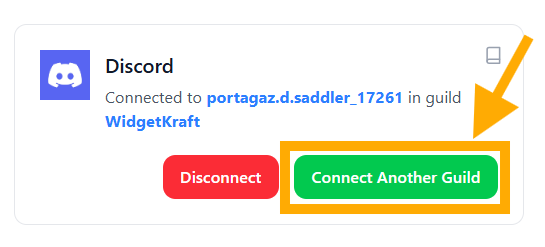
    On the Discord integration card, click Connect Another Guild

  2. 2

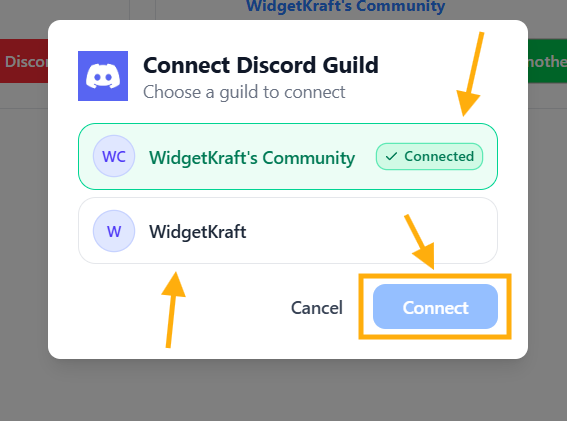
    A popup will appear showing your currently connected guild alongside all other guilds you have admin access to

  3. 3

    Select the new guild you'd like to switch to and click Connect

    Important: Connecting a new guild will immediately remove the connection from your previously connected guild. Any widget-to-channel connections on the old guild will also be cleared.

WidgetKraft: Click Connect Another Guild to open a modal to see all available options

Click Connect Another Guild to open a modal to see all available options

WidgetKraft: Switch Guild Popup

Guild switcher popup showing current guild and other available options

Step 7: Connect a Widget to a Discord Channel

With your guild connected, you can now link individual widgets to specific channels within that guild.

Configuration Process:

  1. 1

    Go to the widget you want to connect (e.g., Live Chat, Feedback Loop, Contact Form)

  2. 2

    Open the widget's configuration panel

  3. 3

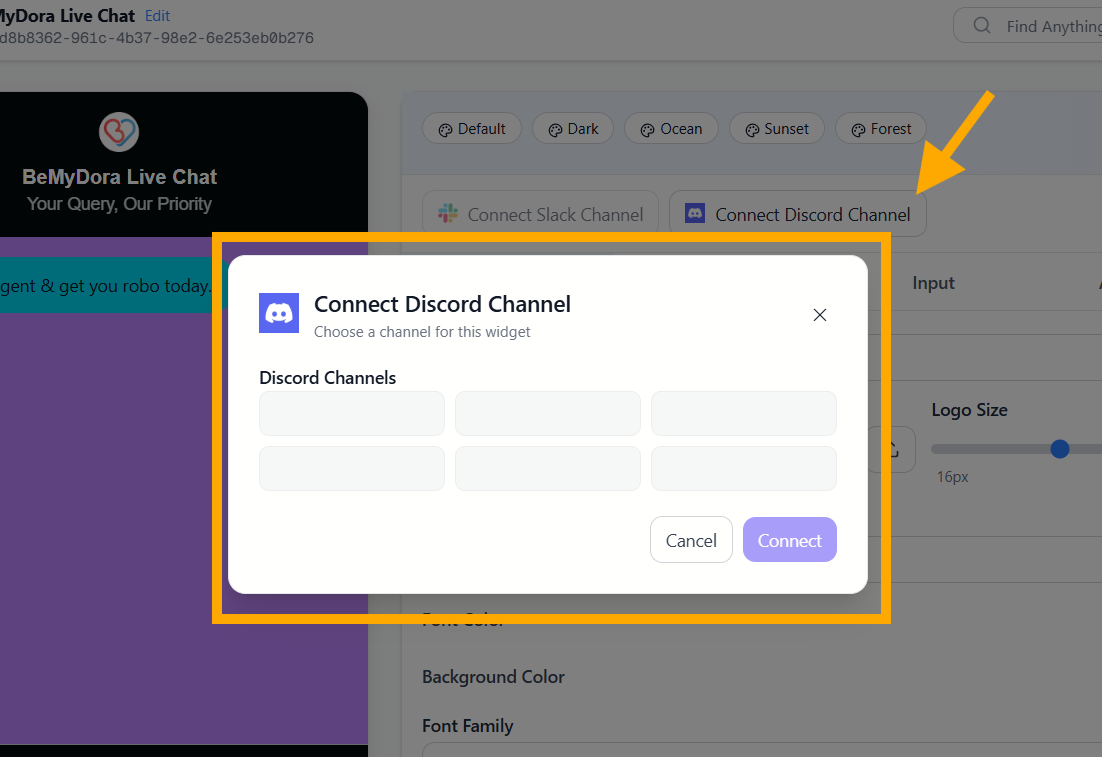
    Look for the Connect Discord Channel button in the integration strip at the top of the panel

    Important: This button will be disabled/grayed out if Discord is not connected or no guild is linked. Complete Steps 1–5 first.

  4. 4

    Click Connect Discord Channel - a modal will open listing all text channels from your connected guild

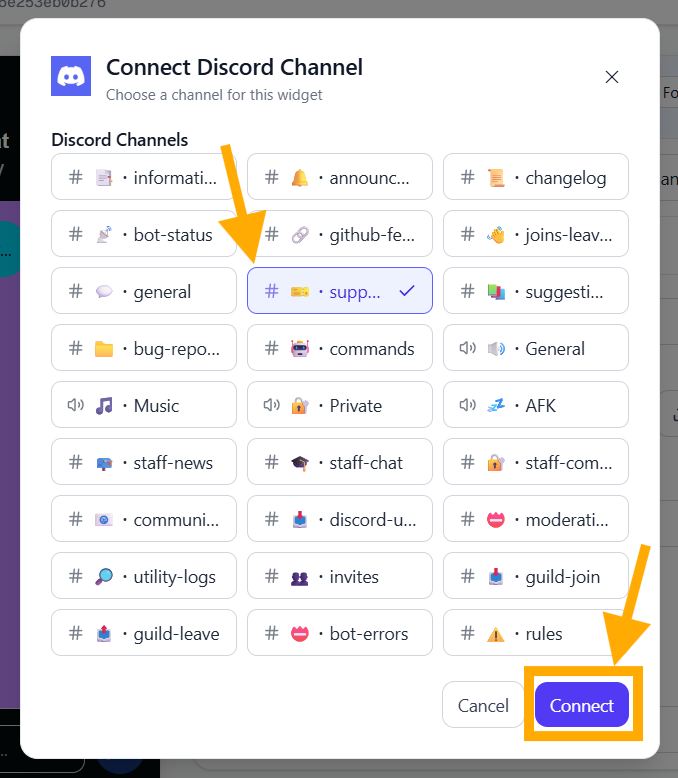
  5. 5

    Select the channel you want this widget's notifications to appear in

  6. 6

    Click Connect - the modal will close and the widget will immediately show the connected channel name

WidgetKraft: Connect Discord Channel Modal

Open a installed widget configure page & click on Connect Discord Channel

WidgetKraft: Pick the Discord channel you want to connect to this widget

Channel picker modal showing all text channels from your connected Discord guild

All Done! Your widget is now connected to a Discord channel. Every interaction on this widget will send a real-time notification to your chosen channel.

Step 8: Disconnecting Discord from WidgetKraft

If you want to fully remove WidgetKraft's access to your Discord account, you can disconnect at any time from the Integrations page.

How to Disconnect:

  1. 1

    Go to the Integrations page from the sidebar

  2. 2

    Find the Discord card showing "Connected to (Your Account)"

  3. 3

    Click the red Disconnect button

  4. 4

    Confirm the disconnection - this will remove your Discord account link, guild connection, and all widget-to-channel connections

WidgetKraft: Integrations page showing the Disconnect Discord button

Integrations page showing the Disconnect Discord button

Warning: Disconnecting will immediately stop all Discord notifications across all widgets. You will need to go through the full setup again to re-enable it.

Managing Your Discord Integration

Common actions and tips for keeping your Discord integration running smoothly.

Change Connected Channel on a Widget

To connect a widget to a different channel:

  1. Go to the widget's configuration panel
  2. Click the green "Connected: (Channel Name)" button
  3. Confirm removal of the current channel
  4. Click "Connect Discord Channel" again
  5. Select a different channel and click Connect

Switch to a Different Guild

To switch your active guild without fully disconnecting:

  1. Go to the Integrations page
  2. Click "Connect Another Guild" on the Discord card
  3. Select a new guild from the popup
  4. Authorize the bot for the new guild if prompted
  5. The old guild connection is automatically removed

Multiple Widgets, Different Channels

You can connect different widgets to different channels within the same guild. For example:

  • • Live Chat Widget → #customer-support
  • • Feedback Loop Widget → #product-feedback
  • • Contact Form Widget → #sales-inquiries

Each widget maintains its own Discord channel connection independently.

Troubleshooting

Q: The "Connect Discord Channel" button is disabled

Solution: Discord is not connected or no guild is linked yet. Complete Steps 1–5 first - you need both an account connection and an active guild before you can link channels to widgets.

Q: My guild doesn't appear in the guild selector

Solution: Only guilds where you have Administrator permissions are shown. Make sure you have admin rights on the server you want to connect, then try again.

Q: No channels appear in the channel picker

Check:

  • • Confirm the WidgetKraft bot was successfully authorized to your guild (Step 4)
  • • Verify the bot has permission to view channels in your server
  • • Try disconnecting the guild and reconnecting it to re-trigger bot authorization

Q: I'm not receiving notifications in Discord

Check:

  • • Verify Discord is connected and a guild is shown on the Integrations page
  • • Confirm the widget is connected to a specific channel (shown in the config panel)
  • • Check that the WidgetKraft bot is still a member of your guild and has Send Messages permission on the target channel
  • • Test the widget to trigger a notification

Q: Can I connect multiple widgets to the same channel?

Answer: Yes! Multiple widgets can send notifications to the same Discord channel. All messages will appear in that channel tagged by widget type so you can tell them apart.

Summary

With Discord integration, you can:

Receive real-time widget notifications directly in your Discord server
Route different widgets to different channels within your guild
Switch guilds anytime without reconnecting your account
Keep your entire team informed instantly where they already work
No coding required - simple click-to-connect setup
Easily manage, switch, or disconnect integrations anytime

Stay connected where your community lives – With Discord integration, your team gets instant visibility into every widget interaction, right inside the server they're already in. No missed messages, no switching tools.